How to Deploy Your Website on Vercel with a Custom Domain
A complete step-by-step guide to buying a domain, deploying a website, configuring DNS, and going live using GitHub, GoDaddy, and Vercel.
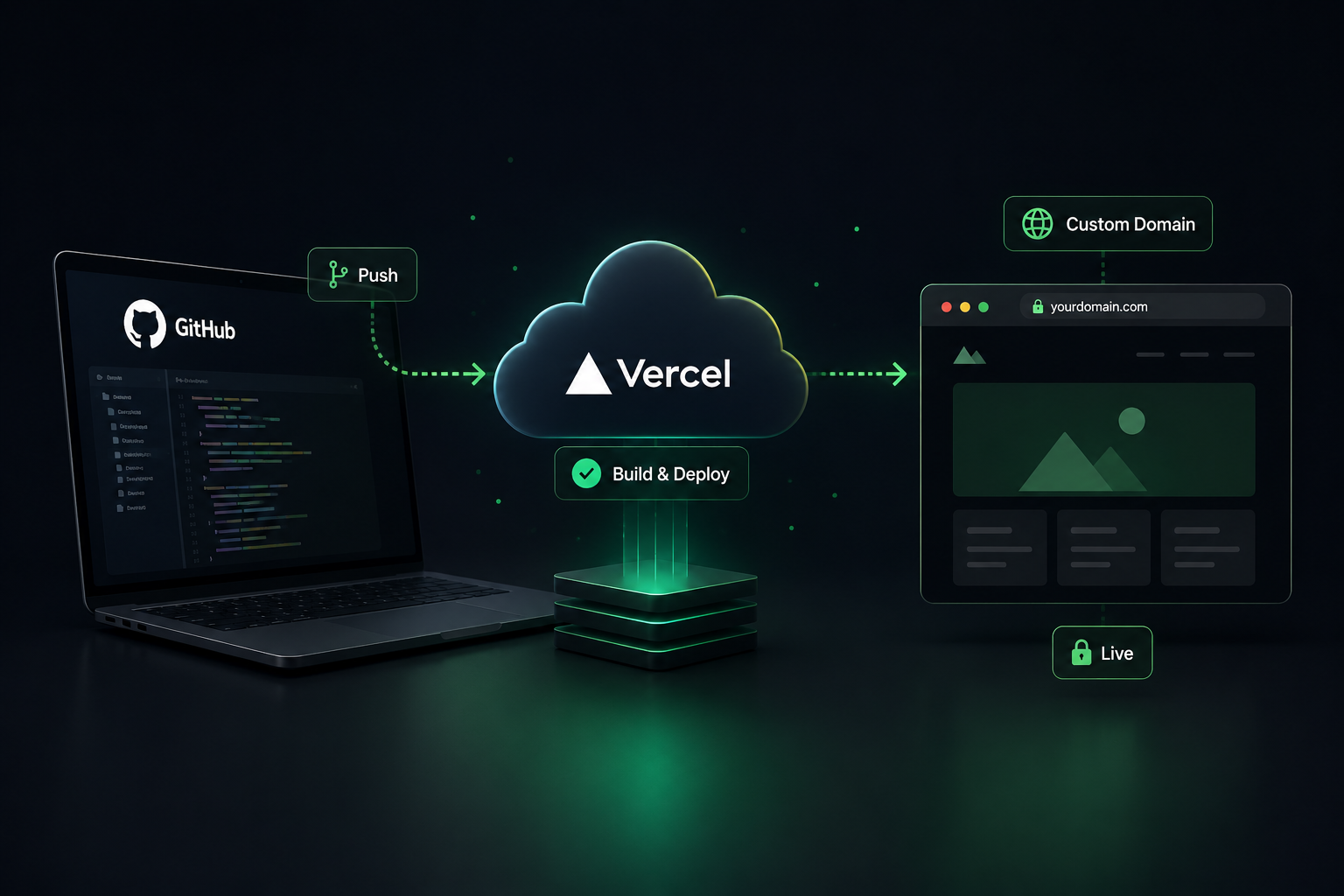
Introduction
This step-by-step guide walks you through the complete process of deploying a website on Vercel, connecting a custom domain, configuring DNS records, and securing your site with SSL.
Whether you want to deploy, publish, or host your website on Vercel, this guide covers the entire process from buying a domain to going live — with real screenshots from Cyvora Studio.
📚 What You'll Learn
- How to create a GitHub repository for your website
- How to deploy your website using Vercel
- How to connect a custom domain (including GoDaddy step-by-step)
- How DNS records work and how to configure them
- How to use Vercel nameservers as an alternative to A/CNAME records
- How to enable SSL and secure your website
- Common deployment issues and troubleshooting tips
If you're a developer, blogger, or someone building a personal brand, launching your own website is more than just a technical task — it's a milestone. It's that moment when your ideas move from local files on your laptop… to something the entire world can access.
In this guide, I'll take you through my end-to-end journey of deploying a website using GitHub, Vercel, and a custom domain. This isn't just about clicking buttons — it's about understanding the complete flow.
By the end, you'll have a clear, practical roadmap to launch your own website confidently and professionally.
Choosing a Custom Domain
Before touching any technical tools or the hard coding part lets cool our heads to come up with a name shall we, because coming up with a name for the website is a big task compared to the technical aspects.
When I started choosing a domain name, I researched so much to come up with this abstract name called "CYVORA" — I almost spent 2 hours on it. The catchy names I came up with were either taken, and I've noticed that even the most abstract domains get bought quickly. My quick suggestion: if you have an idea, implement it and buy that domain name immediately.
This is your identity on the internet, so choose wisely. Here are some tips for choosing a great domain name:
- Easy to remember and spell
- Relevant to your niche
- Professional and scalable
- Unique with low keyword competition
🔍 SEO Insight
Choose a unique domain name with low competition to help your website rank faster in search results. Avoid overly generic names that might be hard to differentiate.
🛒 Buying a Domain
Once the domain name is fixed, the next step is buying your domain. Popular registrars include:
- GoDaddy — popular and widely supported (I also bought my domain here)
- Namecheap — affordable and beginner-friendly
- Google Domains — simple interface, integrated with Google
- AWS Route 53 — for advanced users
Did you know? You can also buy a domain directly through Vercel at vercel.com/domains. Domains purchased through Vercel are automatically connected to your project — no manual DNS configuration required. This is the easiest option if you haven't bought a domain yet and want the simplest possible setup.
After purchase, your domain will show an IDLE status, which means it's registered but not yet connected to any hosting. No need to worry — that will change once we connect it to Vercel.
🧾 Setting Up GitHub
Think of GitHub as your source of truth.
It stores your website's code, tracks changes, and integrates seamlessly with Vercel for automatic deployment.
- index.html — Main page
- styles.css — Styling
- script.js — Functionality
- README.md — Documentation
GitHub serves as your version-controlled source of truth, allowing you to track changes, collaborate, and easily deploy your site.
To set up your GitHub repository, you need a GitHub account. If you don't have one, sign up here: Sign up for GitHub
Now create a new repository for your project:
- Go to GitHub and click "New Repository"
- Name your repository (e.g., "my-website")
- Choose Public or Private
- Initialize with a README (optional)
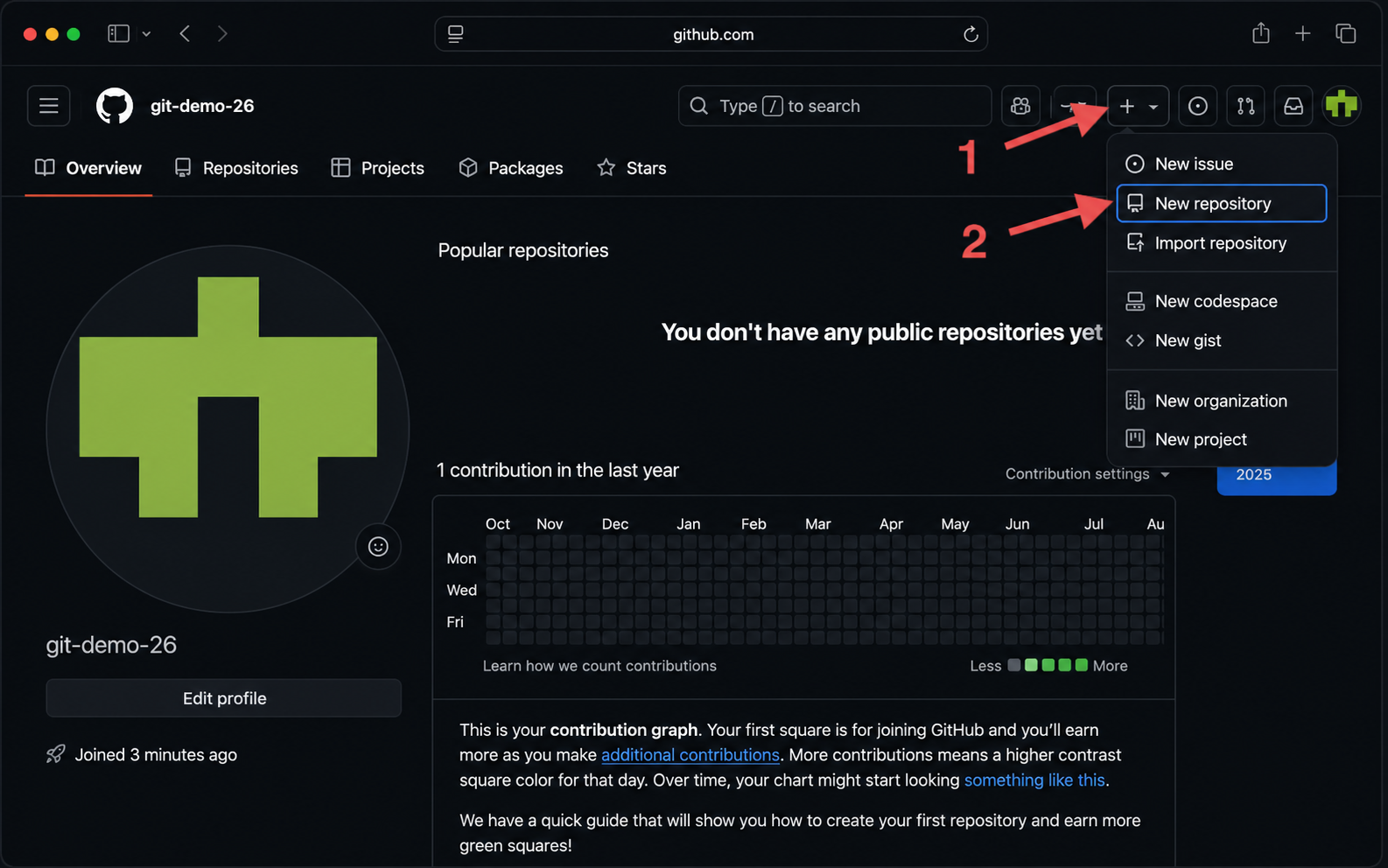
Pro Tip: If you're new to GitHub, initializing with a README can help you get started faster — it creates the first commit for you! Stuck? Check this documentation: GitHub Repository Creation Guide
Want to explore more on GitHub? Check the official docs here.
It's recommended to use an IDE (Integrated Development Environment) — I personally recommend Visual Studio Code due to its vast library of extensions and GitHub Copilot integration.
Here's a simple file structure for a basic website:
my-website/
├── index.html
├── styles.css
├── script.js
└── README.md- index.html — The main HTML file that serves as the entry point of your website.
- styles.css — A CSS file to style your website and make it visually appealing.
- script.js — A JavaScript file to add interactivity and functionality.
- README.md — A markdown file to document your project.
After creating the repository, clone it to your local machine:
git clone https://github.com/username/my-website.git
cd my-website
Then push your local website code to GitHub:
git init
git add .
git commit -m "Initial commit: website setup"
git push origin main
Deploying with Vercel
Why Use Vercel?
- Free hosting for personal projects
- Automatic deployments from GitHub
- Global CDN
- Free SSL certificates
- Simple custom domain setup
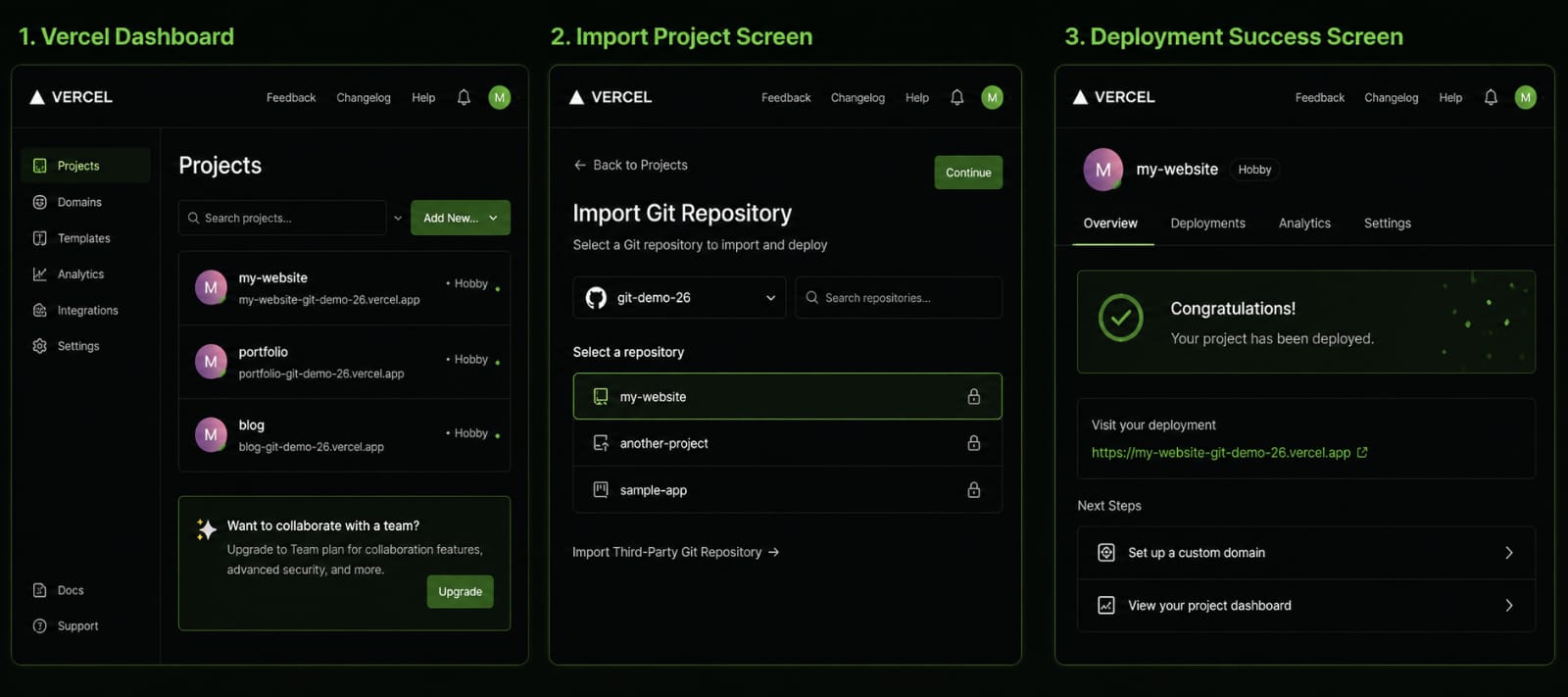
Vercel makes deployment incredibly simple:
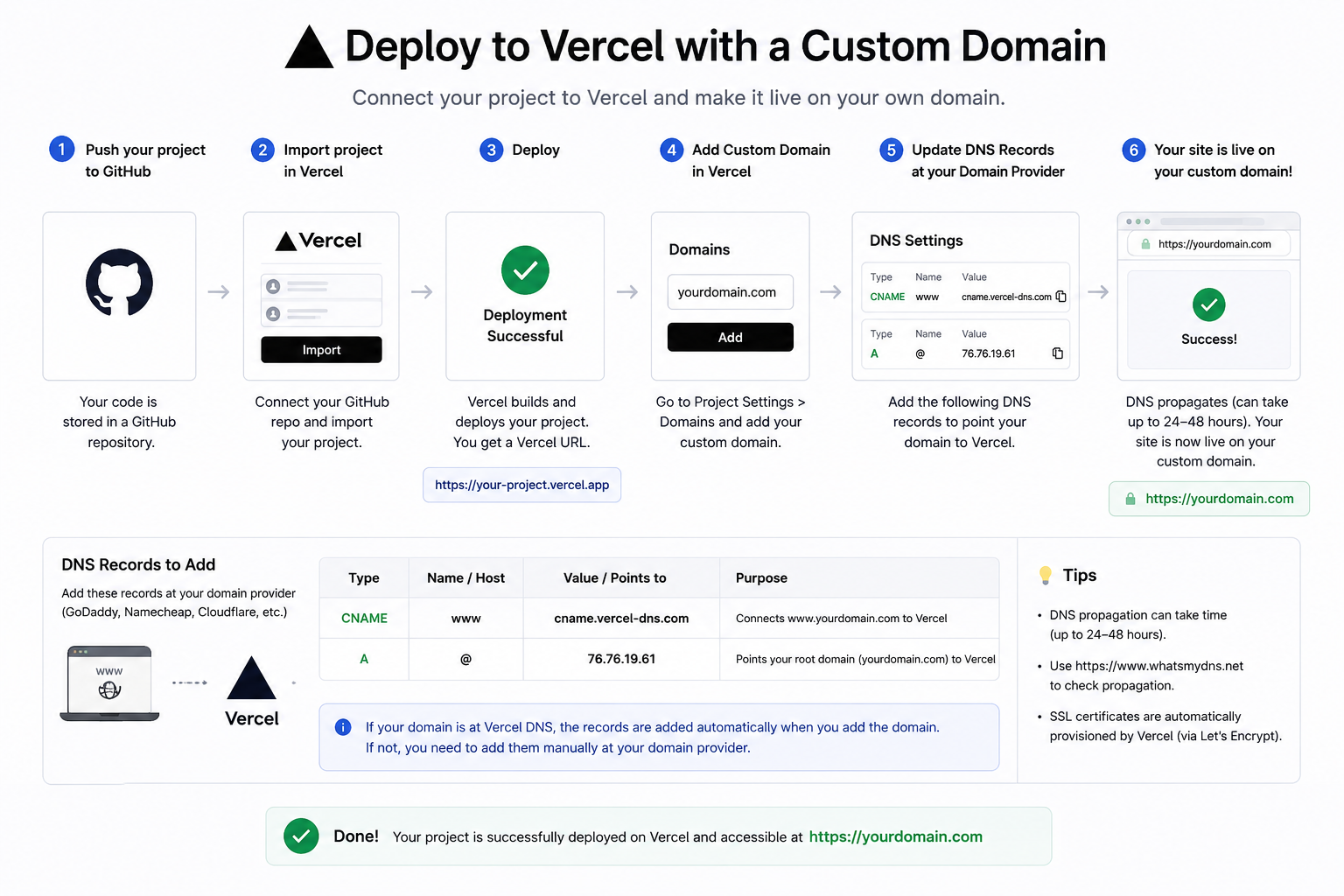
Sign in to Vercel using your GitHub account. Once signed in, follow these steps to deploy your website:
- Go to vercel.com and sign in with GitHub
- Click "Import Project"
- Select your GitHub repository
- Configure build settings (usually auto-detected)
- Click "Deploy"
Within seconds, your site is live at project-name.vercel.app. That's the power of modern deployment platforms!
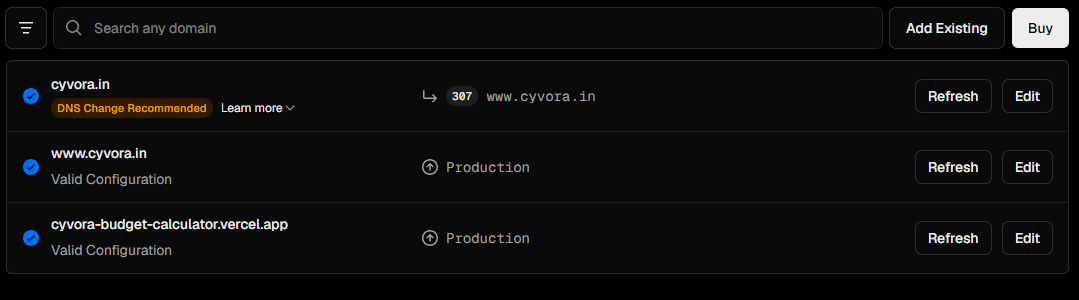
Your site now has a default Vercel domain, making it accessible worldwide while you set up your custom domain. See the Vercel documentation for more details.
Connecting Your Custom Domain to Vercel
Connecting a custom URL (your own domain name) to Vercel is completely free on Vercel's Hobby plan. You only pay for the domain itself at your registrar.
To add your custom domain to your Vercel project:
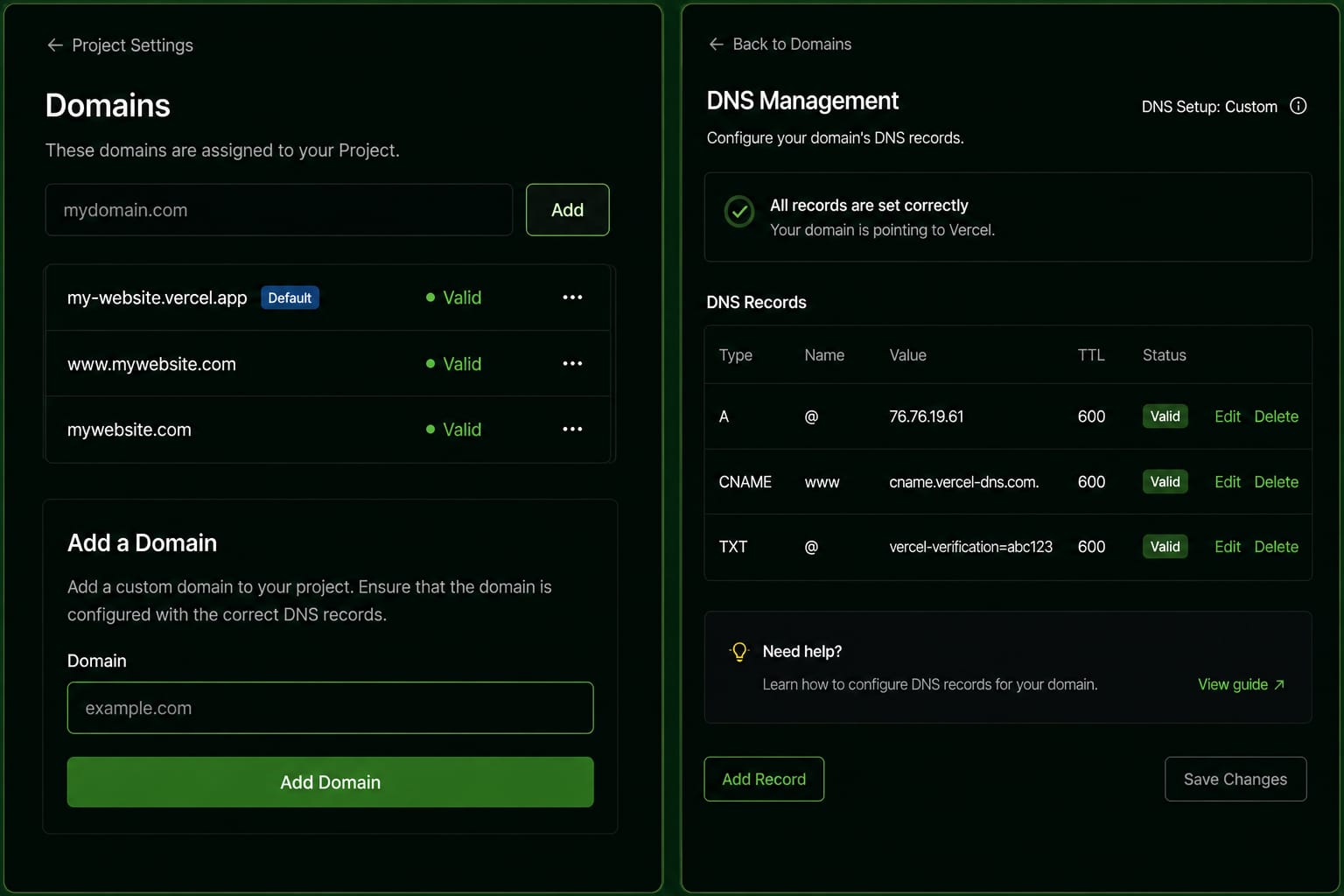
- Go to your Vercel Project Settings
- Navigate to the Domains section
- Click "Add Domain"
- Enter your custom domain (e.g., example.com)
Initially, you'll see "Invalid Configuration" status. This is normal and expected before DNS is configured in your registrar.
DNS Configuration (Critical Step)
To make your domain work with Vercel, you need to update DNS records in your registrar (GoDaddy, Namecheap, etc.). There are two methods — A/CNAME records or Nameserver delegation.
Method 1: A Record and CNAME Record
A Record (Root Domain)
| Field | Value |
|---|---|
| Type | A |
| Name | @ |
| Value | 76.65.34.54 |
CNAME Record (www subdomain)
| Field | Value |
|---|---|
| Type | CNAME |
| Name | www |
| Value | cname.vercel-dns.com |
What These Records Do
These DNS records tell the internet to route your domain to Vercel's servers. Without them, your domain won't know where to find your website.
Step-by-Step: Connect GoDaddy Domain to Vercel
- Log in to GoDaddy and go to My Products → Domains
- Click the DNS button next to your domain
- Under A Records, edit the existing
@record and set the value to76.65.34.54 - Scroll to CNAME Records, add a new record with Name =
wwwand Value =cname.vercel-dns.com - Save the changes and return to your Vercel dashboard
- Vercel will detect the records and the domain status will change to Valid — usually within a few minutes, but can take up to 48 hours
Using Namecheap? The steps are similar — go to Advanced DNS in your Namecheap domain dashboard and add the same A and CNAME records. The field names may differ slightly (e.g., "Host" instead of "Name").
Alternative: Use Vercel Nameservers
Instead of adding individual A and CNAME records, you can delegate your entire domain to Vercel's nameservers. This gives Vercel full control over your DNS and is the recommended approach if you bought your domain through Vercel.
Vercel Nameserver Values
| Nameserver |
|---|
| ns1.vercel-dns.com |
| ns2.vercel-dns.com |
How to Update Nameservers in GoDaddy
- Log in to GoDaddy → My Products → Domains
- Click Manage on your domain
- Scroll to Nameservers and click Change
- Select Enter my own nameservers
- Enter
ns1.vercel-dns.comandns2.vercel-dns.com - Save — propagation takes 1–48 hours
A/CNAME vs. Nameservers — Which to Use?
Use A/CNAME records if you need to keep other DNS records (email, subdomains) managed at GoDaddy. Use Vercel nameservers if you want the simplest possible setup and are moving everything to Vercel. Domains purchased through Vercel use nameserver delegation automatically.
SSL & HTTPS Setup
Good news: Vercel automatically provisions an SSL certificate for your domain using Let's Encrypt — at no cost and with no configuration required.
Once DNS propagation completes, your site will be secured with:
- Green lock icon in browser
- HTTPS protocol (automatic)
- Auto-renewal of certificates
Vercel handles the entire HTTPS setup automatically. You don't need to install anything or pay for a certificate separately.
Troubleshooting Common Issues
Domain Still Shows "Invalid Configuration"
This means DNS changes haven't propagated yet. DNS propagation can take 5 minutes to 24–48 hours. Check that your DNS records are correctly entered in your registrar's dashboard and wait.
Domain Redirects to Wrong Site
Ensure you're using the correct A and CNAME records provided by Vercel. Typos in DNS values are the most common cause. Double-check the IP address and CNAME value character by character.
HTTPS Not Working
Wait for DNS propagation to complete, then refresh. Vercel needs to verify DNS ownership before issuing the SSL certificate. If it still doesn't work after 48 hours, remove and re-add the domain in Vercel settings.
www and non-www Both Working?
This is actually fine — both work. You can set a redirect from one to the other in Vercel's Domain settings if you prefer a canonical URL.
GoDaddy Nameservers Not Updating
After changing nameservers in GoDaddy, it can take up to 48 hours to propagate globally. You can check propagation status at dnschecker.org.
Next Steps
Congratulations on deploying your website! Here are recommended next steps:
- Set up Analytics — Use Vercel Analytics or Google Analytics to track visitors
- Configure Environment Variables — For API keys and sensitive data
- Enable Auto-deployments — Deploy automatically on every GitHub push
- Set up Email — Add contact forms and email forwarding
- Optimize Performance — Use Vercel's built-in performance tools
- SEO Optimization — Add meta tags and structured data
Frequently Asked Questions
1. Is Vercel free for personal projects?
Yes. Vercel offers a free Hobby plan that is suitable for personal websites, portfolios, blogs, and small projects.
2. Can I connect a custom domain to Vercel?
Yes. Vercel allows you to connect domains purchased from providers like GoDaddy, Namecheap, Hostinger, and Google Domains. You can also buy a domain directly through Vercel at vercel.com/domains.
3. Is connecting a custom domain to Vercel free?
Yes. Adding a custom domain to your Vercel project is free on the Hobby plan. You only pay for the domain registration itself at your chosen registrar (typically $10–$15/year for a .com).
4. Do I need coding experience to deploy a website on Vercel?
No. Vercel provides a simple interface that allows beginners to deploy websites directly from GitHub repositories with minimal setup.
5. How long does it take to deploy a website on Vercel?
Most deployments complete within a few seconds to a few minutes depending on the project size. DNS propagation for a custom domain can take up to 48 hours.
6. Does Vercel provide automatic HTTPS?
Yes. Vercel automatically provisions an SSL certificate for your domain using Let's Encrypt, ensuring your site is secured with HTTPS at no extra cost and with no configuration needed.
7. Can I update my website after deployment?
Yes. Any changes pushed to the connected GitHub repository automatically trigger a new deployment on Vercel.
8. What is the difference between Vercel and traditional web hosting?
Vercel focuses on modern web application deployment with automatic scaling, Git integration, global CDN, and continuous deployment workflows. Traditional hosting typically requires manual file uploads and server management.
9. How do I point my domain to Vercel?
To point your domain to Vercel, log in to your domain registrar (e.g. GoDaddy) and go to DNS Management. Add an A record pointing to 76.65.34.54 and a CNAME record pointing to cname.vercel-dns.com. Alternatively, you can delegate your nameservers to ns1.vercel-dns.com and ns2.vercel-dns.com for automatic DNS management.