Git & GitHub Explained — Complete Beginner to Advanced Guide (50+ Commands + Real-World Examples)
From your first git init to recovering deleted commits with git reflog — this is the only Git reference you'll ever need. Built from real development experience at Cyvora Studio.
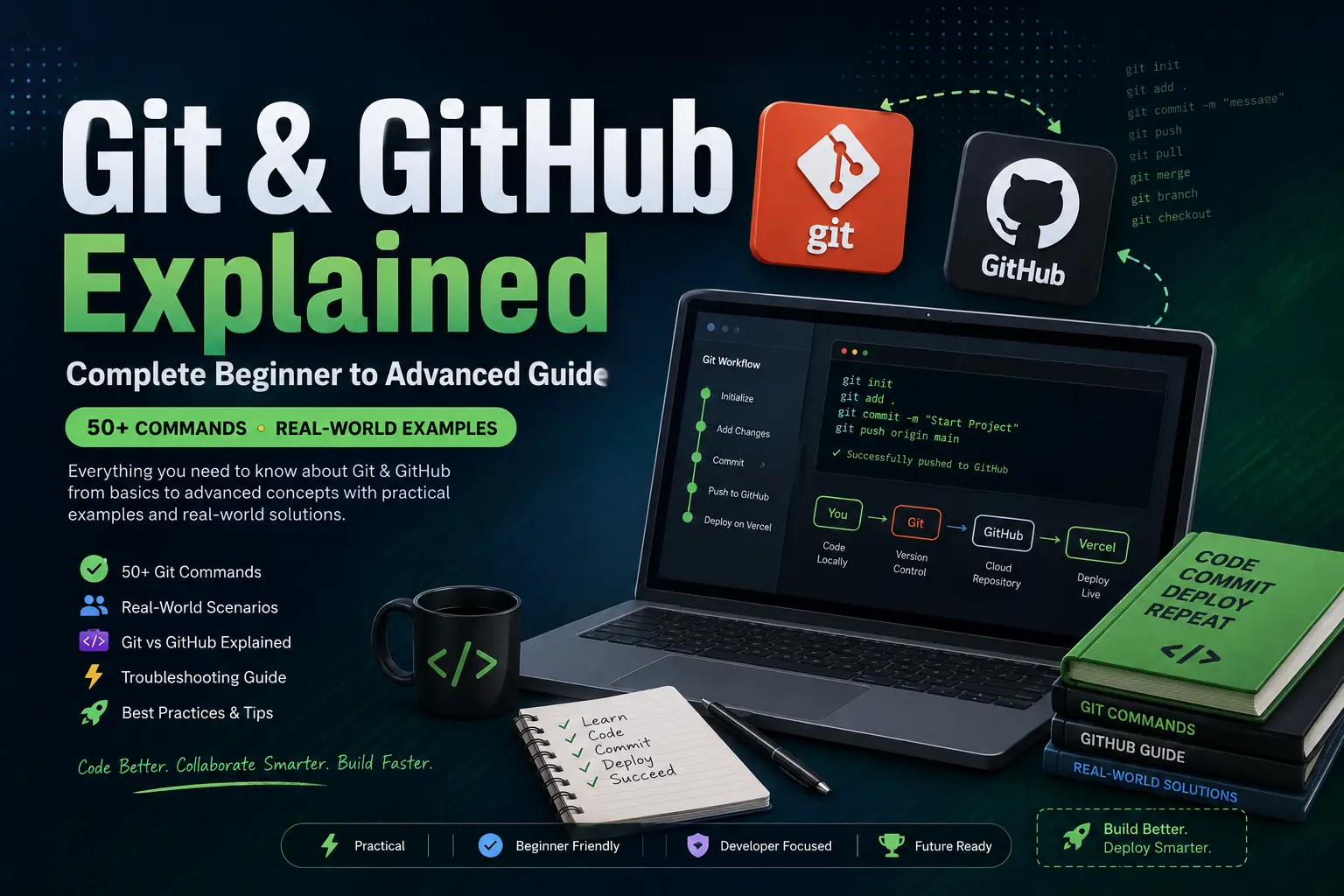
Introduction
This is not just another Git tutorial.
Every Git tutorial tells you git add, git commit, git push. Very few tell you what happens when things go wrong — when your push gets rejected, your HEAD detaches, or you accidentally delete a commit you needed.
During the development of Cyvora Studio and the Cyvora Studio, I encountered dozens of real Git challenges. Rather than hiding those mistakes, I've documented them here — with the exact error messages, the reasons they happened, and the solutions that fixed them.
This guide is that resource. One place. Everything Git.
📚 What You'll Learn
- What Git and GitHub are, and how they differ
- How to install and configure Git from scratch
- The full Git workflow — from init to push
- 50+ Git commands organized by category, each with syntax, example, and output
- 20 real-world error scenarios with exact solutions
- Git best practices for professional development
- Git interview questions and answers
- A printable Git cheat sheet
What is Git?
Git is a free, open-source distributed version control system. It tracks changes in your files over time so you can recall specific versions later, collaborate with others, and maintain a complete history of your project.
Think of Git as a time machine for your code. Every commit is a saved snapshot. If something breaks, you can travel back to any point in history.
- Works offline — your full history lives on your machine
- Supports branching — experiment without breaking production code
- Handles collaboration — multiple developers, one codebase
- Industry standard — used by every major tech company on the planet
History of Git
Git was created by Linus Torvalds in 2005 — the same person who created the Linux kernel. The Linux kernel project had been using a proprietary version control system called BitKeeper, but when the free license was revoked, Linus built Git in just a few weeks as a replacement.
⚡ Git Fun Fact
Git was designed to handle the Linux kernel — one of the largest open-source codebases in existence. It was built for speed, data integrity, and distributed workflows from day one. If it can handle Linux, it can handle your project.
Today, Git is used by over 100 million developers worldwide and is the backbone of platforms like GitHub, GitLab, and Bitbucket.
What is GitHub?
GitHub is a cloud-based hosting platform for Git repositories. It adds collaboration features on top of Git — things Git alone cannot do.
- Remote storage — your code is backed up in the cloud
- Pull Requests — propose and review code changes
- Issues — track bugs and feature requests
- Actions — automate workflows (CI/CD)
- Pages — host static websites for free
- Codespaces — cloud development environments
GitHub was founded in 2008 and acquired by Microsoft in 2018 for $7.5 billion. It hosts over 300 million repositories.
Git vs GitHub
This is one of the most common points of confusion for beginners. Here is the clearest way to understand it:
| Feature | Git | GitHub |
|---|---|---|
| Type | Version Control Tool | Cloud Hosting Platform |
| Where it runs | Your local machine | The cloud (browser) |
| Internet required? | No | Yes |
| Created by | Linus Torvalds (2005) | Tom Preston-Werner (2008) |
| Open source? | Yes | No (but has free tier) |
| Collaboration | Manual (patches/email) | Pull Requests, Issues, Teams |
| Owned by | Community | Microsoft |
Simple analogy: Git is like Microsoft Word — it's the tool that lets you write and track documents. GitHub is like Google Drive — it's where you store and share those documents in the cloud.
Installing Git
Git must be installed on your local machine before you can use it. Here is how to install it on each operating system.
Windows
Download the official installer from git-scm.com. Run the installer and follow the prompts. Git Bash (a Linux-style terminal for Windows) will be included.
macOS
brew install gitOr install Xcode Command Line Tools, which includes Git:
xcode-select --installLinux (Ubuntu/Debian)
sudo apt update
sudo apt install git
Verify Installation
git --versionExpected output:
git version 2.44.0Configuring Git
Before making your first commit, you must tell Git who you are. This identity is attached to every commit you make.
git config --global user.name "Your Name"
git config --global user.email "you@example.com"
Verify your settings:
git config --list🔍 Why --global?
The --global flag applies these settings to all repositories on your machine. If you need different credentials for a specific project (e.g., a work vs. personal repo), run the same commands inside that project folder without the --global flag.
Creating a Repository
There are two ways to start working with a Git repository.
Option 1: Initialize a new repository
mkdir my-project
cd my-project
git init
This creates a hidden .git folder — the engine of your repository.
Option 2: Clone an existing repository
git clone https://github.com/username/repository.gitThis downloads the full repository, including all history, to your machine.
Pro Tip: When joining a team project, always use git clone instead of downloading a ZIP file. The ZIP gives you the code. The clone gives you the full history, branches, and the ability to contribute.
The Git Workflow
Every change you make in Git passes through three stages before it becomes permanent:
| Stage | Name | Description |
|---|---|---|
| 1 | Working Directory | Your files as you edit them. Git sees them but is not tracking changes yet. |
| 2 | Staging Area (Index) | Files you've explicitly marked for the next commit using git add. |
| 3 | Repository (.git) | Committed snapshots saved permanently in your Git history. |
The standard workflow looks like this:
# 1. Make changes to your files

# 2. Stage the changes
git add .

# 3. Commit the snapshot
git commit -m "Describe what changed"

# 4. Push to GitHub
git push origin main
50+ Git Commands — Organized by Category
Every command below includes: what it does, the syntax, a real example, and the expected output. Learn them once. Use them forever.
1. Configuration Commands
git config --global user.name
Sets your identity name for all Git commits on this machine.
Syntax
git config --global user.name "Your Name"When to use
Once, right after installing Git. Required before your first commit.
git config --global user.email
Sets your email address for all Git commits. This links your commits to your GitHub account.
Syntax
git config --global user.email "you@example.com"git config --list
Displays all Git configuration settings currently active on your machine.
Example Output
user.name=Chaitanya
user.email=you@example.com
core.autocrlf=true
git config --global core.autocrlf
Configures how Git handles line endings between Windows (CRLF) and Linux/macOS (LF).
Syntax
# On Windows
git config --global core.autocrlf true

# On macOS/Linux
git config --global core.autocrlf input
2. Repository Commands
git init
Initializes a new Git repository in the current folder by creating a .git directory.
Syntax
git initOutput
Initialized empty Git repository in /your-project/.git/git clone
Downloads a full copy of a remote repository, including all history and branches.
Syntax
git clone https://github.com/username/project.gitBest Practice
Always clone using HTTPS for public repos and SSH for private repos on your main development machine.
git remote add origin
Connects your local repository to a remote GitHub repository.
Syntax
git remote add origin https://github.com/username/project.gitWhen to use
After git init, to link your local repo to GitHub for the first time.
git remote -v
Lists all remote connections and their URLs. Essential for verifying you're connected to the right repository.
Output
origin  https://github.com/username/project.git (fetch)
origin  https://github.com/username/project.git (push)
3. Status Commands
git status
Shows the current state of your working directory and staging area. Use it before every commit.
Output (clean)
On branch main
nothing to commit, working tree clean
Output (with untracked files)
On branch main
Untracked files:
  (use "git add <file>..." to include in what will be committed)
        index.html
        styles.css

nothing added to commit but untracked files present
git diff
Shows the exact line-by-line differences between your working directory and the last commit. Run this before staging to review your changes.
Syntax
git diffgit log
Shows the full commit history of the current branch.
Output
commit a1b2c3d4e5f6...
Author: Chaitanya <you@example.com>
Date:   Sat Jul 19 2026

    Initial commit
git log --oneline
Compact view of commit history — one line per commit. Use --graph --decorate for a visual branch map.
Syntax
git log --oneline --graph --decorateOutput
* a1b2c3d (HEAD -> main, origin/main) Add homepage layout
* f4e5d6c Fix navigation styles
* 9b8a7c6 Initial commit
git show
Shows the details of a specific commit — who made it, when, and what changed.
Syntax
git show a1b2c3d4. Staging Commands
git add .
Stages all changes (new files, modifications, deletions) in the current directory for the next commit.
Syntax
git add .Common Mistake
Running git commit without git add first results in nothing being committed.
git add filename
Stages only a specific file. Useful for creating focused, atomic commits.
Syntax
git add index.html
git add styles.css
git restore
Discards changes in the working directory — reverting a file to its last committed state. Cannot be undone.
Syntax
git restore index.htmlgit reset
Unstages a file — removes it from the staging area but keeps the changes in your working directory.
Syntax
git reset index.html5. Commit Commands
git commit
Creates a snapshot of the staged changes. Opens your default text editor for the commit message.
Syntax
git commitgit commit -m
Creates a commit with a message inline — the most common form.
Syntax
git commit -m "Add homepage layout and navigation"Best Practice
Write commit messages in the imperative tense: "Add feature" not "Added feature". Keep them under 72 characters.
git commit --amend
Modifies the most recent commit — either its message, or its content. Use this to fix typos in commit messages or add a forgotten file.
Fix message only
git commit --amend -m "Correct commit message"Add a forgotten file
git add forgotten-file.html
git commit --amend
⚠️ Warning: Never amend a commit that has already been pushed to a shared branch. It rewrites history and will cause conflicts for your teammates.
6. Branch Commands
git branch
Lists all local branches. The current branch is marked with an asterisk.
Output
* main
  feature/homepage
  bugfix/nav-links
git checkout -b
Creates and immediately switches to a new branch.
Syntax
git checkout -b feature/new-pagegit switch
The modern alternative to git checkout for switching branches. Cleaner and more explicit.
Syntax
git switch main
git switch -c new-branch
git branch -d
Deletes a local branch. Use -D (uppercase) to force delete an unmerged branch.
Syntax
git branch -d feature/old-pagegit branch -M
Renames the current branch. Commonly used to rename master to main.
Syntax
git branch -M main7. Merge Commands
git merge
Combines another branch into the current branch. Preserves full history with a merge commit.
Syntax
git switch main
git merge feature/new-page
When to use
When integrating completed feature branches into main. Ideal for shared/collaborative branches.
git rebase
Replays your commits on top of another branch, creating a cleaner linear history.
Syntax
git switch feature/my-work
git rebase main
Merge vs Rebase — Quick Rule
Use merge for shared branches (main, develop). Use rebase for local cleanup before opening a pull request.
git cherry-pick
Applies a specific commit from one branch onto your current branch — without merging the entire branch.
Syntax
git cherry-pick a1b2c3dWhen to use
When you need one specific fix from another branch but are not ready to merge everything.
8. Remote Commands
git push
Uploads your local commits to the remote repository on GitHub.
Syntax
git push origin mainFirst push of a new branch
git push -u origin mainThe -u flag sets the upstream, so future pushes only need git push.
git pull
Downloads changes from the remote and merges them into your current branch. Equivalent to git fetch + git merge.
Syntax
git pull origin maingit pull --rebase
Downloads remote changes and replays your local commits on top, avoiding a merge commit. Preferred for keeping a clean history.
Syntax
git pull --rebase origin mainWhen to use
When your push is rejected because the remote has newer commits you don't have locally.
git fetch
Downloads changes from the remote but does not merge them. Lets you inspect changes before integrating.
Syntax
git fetch originFetch vs Pull
fetch is safe — it never touches your working files. pull automatically merges, which can create conflicts.
9. Advanced Commands
git stash
Temporarily saves your uncommitted changes so you can switch contexts without losing work.
Stash your work
git stashRestore stashed work
git stash popView all stashes
git stash listgit tag
Marks a specific commit as a release version. Tags are used in production deployments.
Create a tag
git tag v1.0.0
git push origin v1.0.0
git bisect
Uses binary search to find the exact commit that introduced a bug.
Syntax
git bisect start
git bisect bad         # current commit is broken
git bisect good v1.0   # this version was working
Git will automatically check out commits between the good and bad points for you to test.
git reset --soft HEAD~1
Undoes the last commit but keeps all changes staged. Use this to redo a commit with a better message or additional files.
Syntax
git reset --soft HEAD~110. Emergency Commands
git reflog
Your safety net. Shows a log of every action HEAD has pointed to — including commits that were deleted, reset, or lost. Use this to recover from almost any mistake.
Syntax
git reflogOutput
a1b2c3d (HEAD -> main) HEAD@{0}: commit: Add footer
f4e5d6c HEAD@{1}: commit: Add nav
9b8a7c6 HEAD@{2}: reset: moving to HEAD~1
git reset --hard
Moves HEAD to a specific commit and permanently discards all changes after that point. Use with extreme caution.
Syntax
git reset --hard HEAD~1        # go back one commit
git reset --hard a1b2c3d       # go back to specific commit
⚠️ Danger: This permanently destroys uncommitted changes and all commits after the target. If you accidentally reset too far, use git reflog to recover the lost commits.
git clean
Removes untracked files from the working directory. Useful for cleaning build artifacts or test files.
Syntax
git clean -fd # remove untracked files and directoriesgit fsck
Checks the integrity of your Git repository. Useful for diagnosing corruption issues.
Syntax
git fsck --fullReal-World Scenarios — Your Git Journey
During the development of Cyvora Studio application, I encountered several real Git challenges that every developer faces. Rather than hiding those mistakes, I've documented them here with the exact errors and solutions. My goal is to help beginners troubleshoot Git problems faster by learning from real development experiences.
What makes this section different: Almost every Git tutorial says git add, git commit, git push. This section shows you what happens when that fails — and exactly how to fix it.
Untracked Files Present
Situation: You create a new project and run git status.
Error Output
On branch main

No commits yet

Untracked files:
  (use "git add <file>..." to include in what will be committed)
        index.html
        css/
        js/

nothing added to commit but untracked files present
Why this happens
Git has found files in your project folder but isn't tracking them yet. You initialized Git but never told it which files to include.
Solution
git add .
git commit -m "Initial commit"
✅ Lesson: Always stage files before committing. git add is the bridge between your files and your commit.
Push Rejected — Non-Fast-Forward
Situation: You run git push and it fails.
Error Output
! [rejected]        main -> main (non-fast-forward)
error: failed to push some refs to 'https://github.com/...'
hint: Updates were rejected because the remote contains work
hint: that you do not have locally.
Why this happens
Someone else (or you, from another machine) pushed commits to GitHub that your local repository doesn't have yet. Git refuses to overwrite those commits.
Solution
git pull --rebase origin main
git push
✅ Lesson: Always pull the latest changes before pushing. Make git pull --rebase your default pull strategy.
Wrong GitHub Repository Connected
Situation: You push code but GitHub doesn't show the latest changes. The files are appearing in the wrong repository.
Diagnose
git remote -vOutput (wrong repo)
origin  https://github.com/username/wrong-repo.git (fetch)
origin  https://github.com/username/wrong-repo.git (push)
Solution
git remote remove origin
git remote add origin https://github.com/username/correct-repo.git
Verify
git remote -v✅ Lesson: Always verify your remote URL with git remote -v when setting up a new project.
LF Will Be Replaced by CRLF Warning
Error Output
warning: LF will be replaced by CRLF in index.html.
The file will have its original line endings in your working directory
Why this happens
Windows uses CRLF (\r\n) for line endings. Linux/macOS use LF (\n). Git is warning you it will auto-convert when you commit.
Solution
Usually, no action is required. The warning is informational, not an error. If you want to suppress it:
git config --global core.autocrlf true✅ Lesson: This is a warning, not an error. Your code will work fine. On Windows, core.autocrlf true is the standard setting.
Nothing to Commit, Working Tree Clean
Output
On branch main
nothing to commit, working tree clean
Meaning
Everything in your project has already been committed. Git is up to date. No action is required.
✅ Lesson: This is a good message. It means your repository is in a clean state. You only need to commit when you've made new changes.
Accidentally Forgot a File in Last Commit
Situation: You committed, but realized you forgot to include one file. You don't want to create a whole new commit just for that one file.
Solution — Amend the previous commit
git add forgotten-file.html
git commit --amend
This opens your editor. Save and close — the file is now part of the previous commit as if it was always there.
✅ Lesson: Use git commit --amend to fix the last commit. Never push an amended commit to a shared branch.
Wrong Commit Message
Situation: You typed "asd" as your commit message by accident.
Solution
git commit --amend -m "Initial commit: add homepage layout"✅ Lesson: git commit --amend -m rewrites the last commit message instantly.
Accidentally Deleted a Branch
Situation: You ran git branch -d feature/important and immediately regretted it. ( in case if you dont' know why it will be used it will be used to safely delete a local git branch named as feature/important.)
Solution — Use reflog to find the lost commit
git reflogOutput
a1b2c3d HEAD@{0}: checkout: moving from feature/important to main
f4e5d6c HEAD@{1}: commit: Last commit on feature branch
Recover
git checkout f4e5d6c
git switch -c feature/important
✅ Lesson: Git never truly deletes commits immediately. git reflog is your time machine.
Merge Conflict
Error Output
CONFLICT (content): Merge conflict in index.html
Automatic merge failed; fix conflicts and then commit the result.
Why this happens
Two developers (or two branches) modified the same lines in the same file. Git doesn't know which version to keep — it asks you to decide.
Open the conflicted file. You'll see:
<<<<<<< HEAD
<h1>Welcome to Cyvora</h1>
=======
<h1>Welcome to Cyvora Studio</h1>
>>>>>>> feature/update-title
Solution
Edit the file to keep the version you want, remove the conflict markers (<<<, ===, >>>), then:
git add index.html
git commit
✅ Lesson: Merge conflicts are normal. They are not a failure — they are Git asking for your judgment.
Detached HEAD
Error Output
HEAD detached at abc1234Why this happens
You checked out a specific commit hash instead of a branch name. HEAD (which normally points to a branch) is now pointing directly at a commit — hence "detached".
Solution
git switch mainIf you made commits while in detached HEAD and want to keep them:
git switch -c my-recovery-branch✅ Lesson: Always work on a named branch. Never commit in detached HEAD state unless you immediately save that work to a new branch.
Accidentally Deleted Local Changes
Situation: You ran git restore or git reset --hard and lost uncommitted work.
If you had stashed the work:
git stash list
git stash pop
If you used reflog:
git reflog
git reset --hard HEAD@{1}
⚠️ Warning: If the changes were never committed or stashed, they may be permanently gone. This is why committing frequently is important.
Remote Origin Already Exists
Error Output
error: remote origin already exists.Solution
git remote remove origin
git remote add origin https://github.com/username/new-repo.git
✅ Lesson: You can only have one remote named origin. Remove it before adding a new one.
On Wrong Branch — Renaming master to main
Situation: Your repository uses master but GitHub expects main.
Solution
git branch -M main✅ Lesson: Modern Git repositories use main as the default branch. The -M flag renames and resets the upstream tracking.
How to Clone an Existing Project (Joining a Team)
Situation: A new team member is joining the project. Instead of sharing a ZIP file, use Git.
git clone https://github.com/username/project.git
cd project
npm install
npm start
✅ Lesson: Cloning gives every team member the full history, all branches, and the ability to push changes. A ZIP file gives them none of that.
Ignore Unnecessary Files — .gitignore
Situation: You accidentally committed node_modules or .env to GitHub.
Create a .gitignore file
node_modules/
.env
.vscode/
dist/
.DS_Store
If already committed, remove from tracking:
git rm -r --cached node_modules
git commit -m "Remove node_modules from tracking"
✅ Lesson: Create a .gitignore before your first commit. Never commit .env files — they contain secrets.
Check What Changed Before Committing
Situation: You've made changes and want to review them before staging.
git diffTo see what's already staged:
git diff --staged✅ Lesson: Always review with git diff before committing. It takes five seconds and prevents many accidental commits.
View Commit History Visually
git log --oneline --graph --decorateOutput
*   a1b2c3d (HEAD -> main) Merge feature/nav into main
|\
| * f4e5d6c Add navigation component
|/
* 9b8a7c6 Initial commit
✅ Lesson: This view is invaluable for understanding your branch history and merge points.
Undo Last Commit (Keep Your Changes)
Situation: You committed too early and want to undo the commit but keep all your file changes.
git reset --soft HEAD~1Your changes are now back in the staging area, ready to be re-committed correctly.
✅ Lesson: --soft keeps your changes. --hard destroys them. Always double-check which one you need.
Restore a Deleted File
Situation: You accidentally deleted a file that was already committed.
git restore index.htmlThis restores the file from the last committed version.
✅ Lesson: If a file was committed at any point, Git can restore it. This is one of the most powerful benefits of version control.
Accidentally Deleted a Commit — Recover with Reflog
Situation: You ran git reset --hard HEAD~2 and lost two commits you needed.
git reflogOutput
a1b2c3d HEAD@{0}: reset: moving to HEAD~2
f4e5d6c HEAD@{1}: commit: Add contact section     ← this one
9b8a7c6 HEAD@{2}: commit: Add footer              ← and this one
Recover
git reset --hard f4e5d6c✅ Lesson: git reflog stores the history of where HEAD has been for 90 days by default. It is your ultimate recovery tool.
My Latest GitHub Commit Wasn't Deploying to Vercel
Problem
Situation: I pushed new code to GitHub, but Vercel kept deploying an older commit.
Why this happens
The repository synchronization between GitHub and Vercel wasn't triggering a new deployment, or the deployment was linked to an older commit.
Solution
git log --oneline -5 Verify the latest commits
git branch -vv Verify the current Branch
git remote -v Verify the remote URL
git rev-parse --short HEADCheck the current commit & Compare it with the latest commit on GitHub
git push origin main Force push the latest changes
After these steps trigger a fresh deployment manually after confirming GitHub contained the latest commit.
✅ Lesson: Always verify GitHub received your latest commit before investigating Vercel.
Git Best Practices
These are the habits that separate beginners from professional developers.
1. Commit Often, Commit Small
Each commit should represent one logical change. Small commits are easier to review, debug, and revert if needed.
2. Write Meaningful Commit Messages
# ❌ Bad
git commit -m "fix"
git commit -m "stuff"
git commit -m "asd"

# ✅ Good
git commit -m "Fix navigation link color on mobile"
git commit -m "Add footer with social media icons"
git commit -m "Refactor hero section CSS for performance"
3. Always Pull Before Push
git pull --rebase origin main
git push
4. Use Branches for Every Feature
git switch -c feature/contact-form
# make changes
git switch main
git merge feature/contact-form
git branch -d feature/contact-form
5. Never Commit Secrets
API keys, passwords, and .env files must never appear in your Git history. Once pushed to GitHub, even if you delete them, they may have been cached or scraped.
6. Keep a Clean .gitignore
node_modules/
.env
.env.local
dist/
.vscode/
.DS_Store
*.log
7. Review with git status and git diff
Before every git add and git commit, check what you're about to commit. Prevent accidental inclusions.
Git Interview Questions
These are the most frequently asked Git questions in developer interviews at all levels.
Q1: What is the difference between git fetch and git pull?
git fetch downloads changes from the remote but does not merge them into your local branch. git pull is git fetch + git merge in a single command. Use fetch when you want to inspect remote changes before integrating them.
Q2: What is the difference between git merge and git rebase?
git merge creates a merge commit that preserves the full branch history. git rebase replays your commits on top of another branch, producing a linear history with no merge commit. Use merge for shared branches (main), rebase for local feature cleanup before a PR.
Q3: What is HEAD in Git?
HEAD is a pointer that tracks your current position in the repository. Normally it points to the tip of your current branch. In a detached HEAD state, it points directly to a specific commit rather than a branch name.
Q4: What is a Detached HEAD?
A detached HEAD occurs when you check out a specific commit hash instead of a branch. You're no longer on any named branch. Any commits made in this state won't belong to any branch unless you create one. Fix with: git switch main or git switch -c new-branch.
Q5: What is git stash?
git stash saves your uncommitted changes to a temporary stack and restores the working directory to the last commit state. Use git stash pop to restore the saved work. Useful when you need to switch branches urgently without committing unfinished work.
Q6: What is git cherry-pick?
git cherry-pick applies the changes from a specific commit to your current branch, without merging the entire source branch. It's useful for backporting bug fixes to older release branches.
Q7: What is the difference between git reset and git revert?
git reset moves HEAD back to a previous commit, rewriting history. It should not be used on shared branches. git revert creates a new commit that undoes a previous commit, preserving history. Use revert for public/shared branches.
Q8: What is git reflog?
git reflog records every movement of HEAD over the past 90 days, even for commits that have been reset or deleted. It is your primary recovery tool when you've lost commits, accidentally reset too far, or need to undo a rebase.
Q9: Explain git squash.
Squashing combines multiple commits into a single commit. It's done during an interactive rebase: git rebase -i HEAD~3 then marking commits as squash or s. Useful for cleaning up a messy feature branch before merging into main.
Q10: What are branching strategies?
Common strategies include: Git Flow (main, develop, feature, release, hotfix branches), GitHub Flow (main + feature branches, simplified), and Trunk-based development (all developers commit directly to main with feature flags). GitHub Flow is the most widely used for web development teams.
Git Cheat Sheet
A quick reference for the most commonly used Git commands.
| Command | What it does |
|---|---|
git init | Initialize a new repository |
git clone <url> | Clone a remote repository |
git status | Check current state |
git add . | Stage all changes |
git commit -m "msg" | Commit with message |
git push origin main | Push to remote |
git pull --rebase | Pull with rebase |
git fetch origin | Fetch without merging |
git switch -c <branch> | Create and switch branch |
git merge <branch> | Merge branch into current |
git rebase main | Rebase onto main |
git stash | Stash uncommitted changes |
git stash pop | Restore stashed changes |
git log --oneline | Compact history view |
git diff | See unstaged changes |
git diff --staged | See staged changes |
git reset --soft HEAD~1 | Undo last commit, keep changes |
git reset --hard HEAD~1 | Undo last commit, discard changes |
git reflog | View full HEAD history |
git cherry-pick <hash> | Apply specific commit |
git commit --amend | Fix last commit |
git tag v1.0.0 | Create version tag |
git remote -v | List remote connections |
git branch -M main | Rename branch to main |
git restore <file> | Discard file changes |
git clean -fd | Remove untracked files |
Frequently Asked Questions
1. What is the difference between Git and GitHub?
Git is a local version control tool. GitHub is a cloud platform that hosts Git repositories and adds collaboration features. You use Git to manage your code, and GitHub to share and back it up online.
2. Can I use Git without GitHub?
Yes. Git is a standalone tool that works entirely offline. GitHub is just one of many remote hosting platforms (others include GitLab and Bitbucket). You only need GitHub when you want to push your code to the cloud or collaborate with others.
3. What is the difference between git merge and git rebase?
git merge creates a merge commit, preserving the full branching history. git rebase rewrites commit history to create a clean, linear timeline. Use merge for shared branches, rebase for local feature cleanup before a pull request.
4. How do I undo a git commit?
To undo and keep your changes: git reset --soft HEAD~1. To undo and discard your changes: git reset --hard HEAD~1. To create a new commit that reverses a previous one (safe for shared branches): git revert HEAD.
5. What is a detached HEAD state?
It means HEAD is pointing to a specific commit rather than a branch. This happens when you check out a commit hash. Fix it with git switch main to return to your main branch.
6. How do I recover a deleted commit?
Use git reflog to find the commit hash, then git reset --hard <hash> to restore your branch to that point. Git keeps a 90-day log of all HEAD movements.
7. What should I put in .gitignore?
Always ignore: node_modules/, .env, .env.local, build outputs (dist/, build/), IDE files (.vscode/, .idea/), and OS files (.DS_Store, Thumbs.db).
8. What is the difference between git reset --soft, --mixed, and --hard?
--soft: Undo commit, keep changes staged. --mixed (default): Undo commit, keep changes unstaged. --hard: Undo commit, delete all changes permanently.
Conclusion
Git is not just a tool — it is the foundation of modern software development. Every professional developer uses it daily. Mastering it is one of the highest-leverage skills you can develop.
This guide was built from real development experience at Cyvora Studio. Every scenario in the real-world section happened during actual projects. The best way to learn Git is to use it — make branches, break things, and use git reflog to fix them.
🌟 Your Next Steps
- Set up Git on your machine and configure your identity
- Create a GitHub account and your first repository
- Deploy a project using GitHub + Vercel
- Practice branching and merging on a side project
- Read the dedicated deep-dive articles linked in Related Articles
If you learned something from this guide, share it with someone who is just starting out. The best investment in the developer community is passing knowledge forward.